Applications
An application is one deployable thing—a compose file and the history of every version of it you have pushed. It belongs to an organization, and it's where you spend most of your time in the control panel.
There are three levels, and you move between them with the breadcrumb trail at the top of every page:
| Level | Answers |
|---|---|
Applications (/applications) |
which applications you can see, and what's live on each |
One application (/applications/{id}) |
what's live here, what it costs, and what else you've deployed |
One revision (/applications/{id}/deployments/{id}) |
what's this version—built from what, running what, costing what |
Finding your way around
Every page below Applications carries a breadcrumb trail: each level you came through is a link, and the page you are on is the last entry and isn't.

Click any earlier crumb to step back a level. The trail is the same on the variables page, the logs page and the new-deployment form, so you are never more than one click from the application you were looking at.
The application list
The Applications link in the sidebar lists every application in every organization you belong to, with what's currently deployed on each.
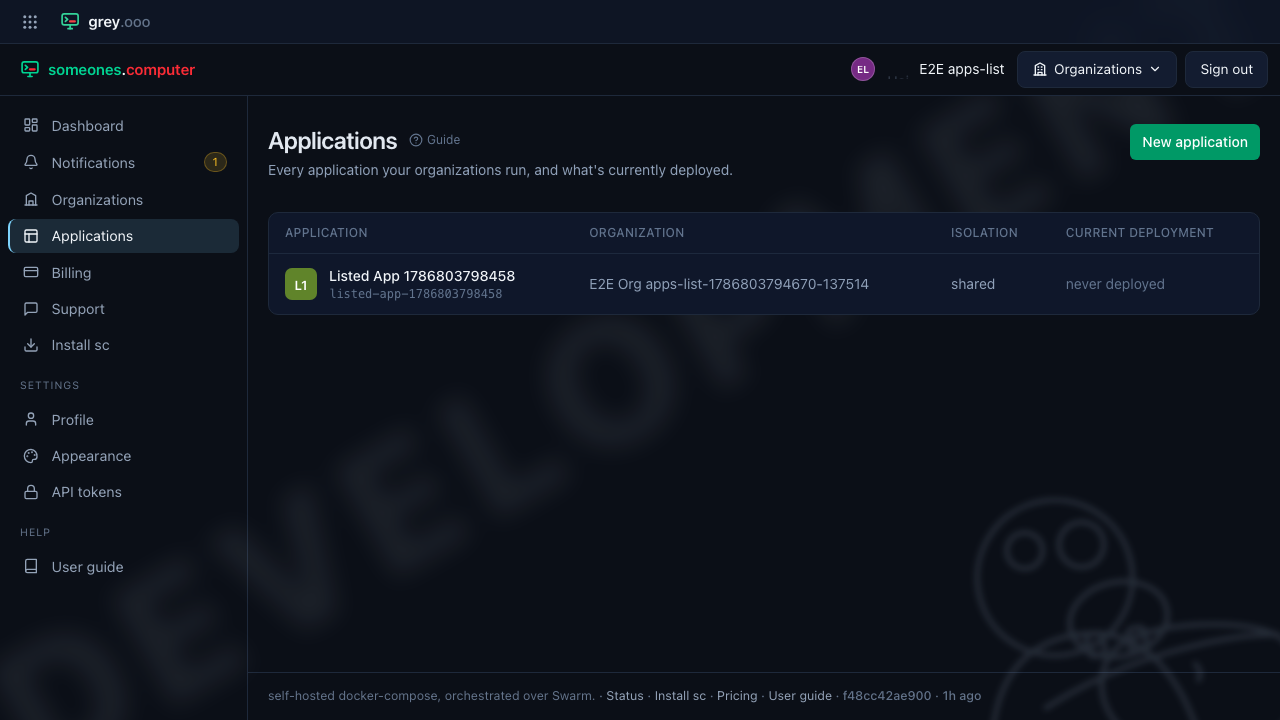
Click an application's name to open its dashboard.
Icons
Every application has an icon, shown here, on its dashboard and in its organization's application table. Until one is stored for it, the icon is drawn from the application's name and colour-keyed to its slug—so it's stable, and it never changes when you rename the application.
Deploy something that serves a favicon and it becomes the icon by itself. Each
time a revision goes live the platform fetches the application over its own
hostname, reads the icons the page declares (including a web-app manifest's, and
/favicon.ico), and adopts the best one. Nothing to configure, and nothing breaks
if there is no favicon—the drawn icon stays.
An operator can store an icon by hand with
php bin/console app:application:icon <slug> <file>. An icon set that way is kept:
later deploys won't replace it. --clear goes back to the drawn one, and
--from-favicon re-checks the deployed application immediately instead of waiting
for the next deploy.
An application's dashboard
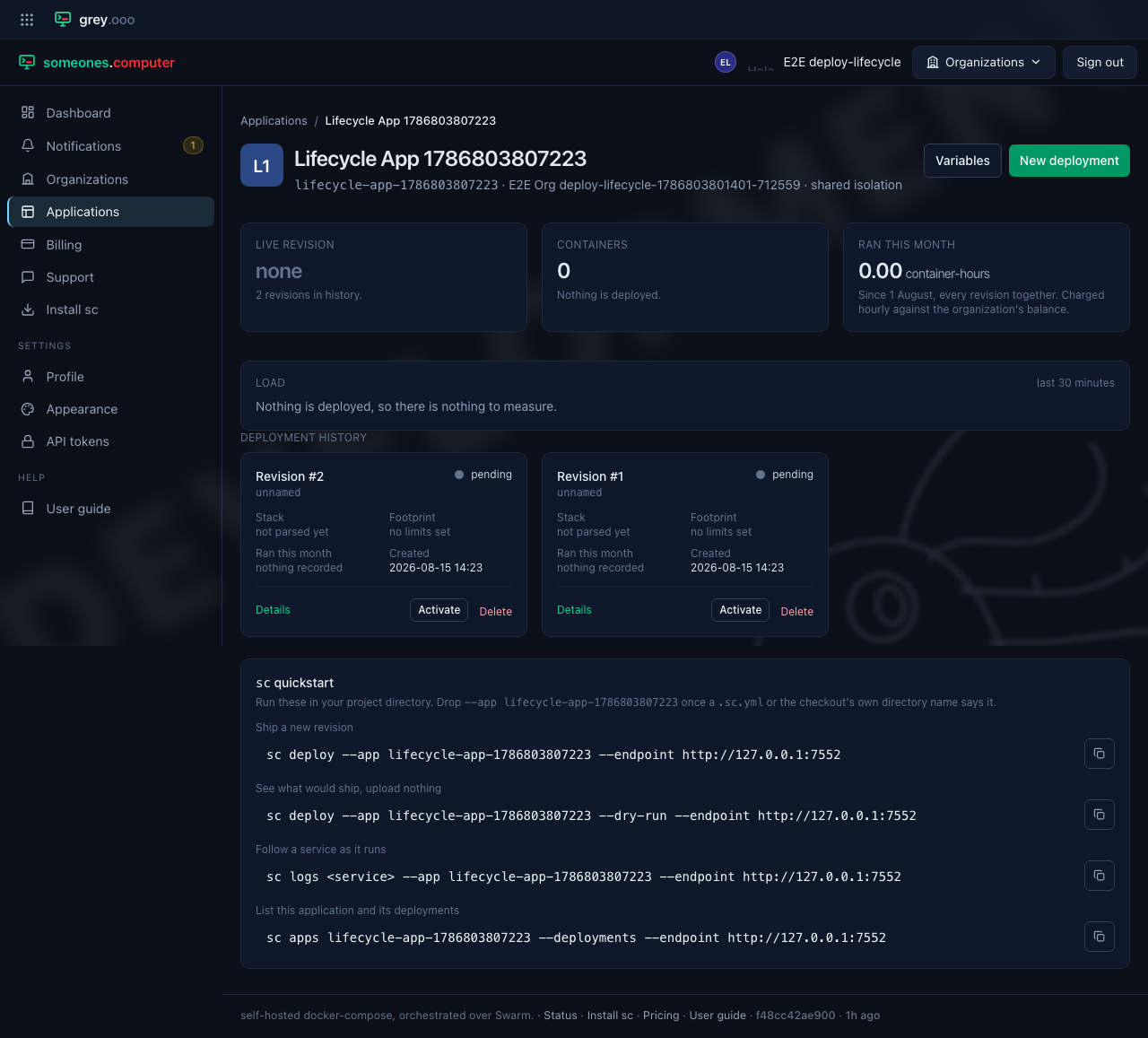
Three figures at the top say what the application is right now:
- Live revision—which revision the application is serving, and what state it's in. Select the number to open that revision. "None" means nothing is deployed, which isn't an error—a newly created application has no revisions and answers on no address until you deploy one.
- Containers—replicas summed across the live revision's services. This is the figure billing counts.
- Ran this month—container-hours across every revision since the 1st.
This is what the organization pays for, an hour at a time—see
Billing. The rates themselves are still
placeholders (
/pricingsays so on the page), but the meter behind them is real and the figure here is the one the charge is computed from.
Below those:
- Not running what was asked for — appears only when the swarm is reporting containers than the revision requested. A deploy still rolling out reads short for a few seconds; anything longer is worth a look.
- Addresses—every way to reach the application from outside. That
includes the hostname the platform assigned it, any of your own
domains pointed at it, and any raw Transmission Control Protocol
(TCP)/User Datagram Protocol (UDP) port it publishes. The same list
screads, so the page and the CLI can't disagree.
The Addresses panel appears for any live revision, including one that's reachable from nowhere—which is the case worth reading. The platform gives a service a hostname and a certificate once it knows the service speaks HTTP. It recognises the usual ports (80, 8080, 3000, 8000, 5000) on their own. A service listening anywhere else has to say so, in the compose file:
services:
  lab:
    image: ghcr.io/acme/lab
    x-someones:
      http: 8473
That declares a container port, not a published one. Nothing reaches the
world except through the edge, which terminates Transport Layer Security (TLS)
for it. x- keys are part of
the compose spec, so the file still runs unchanged under docker compose up.
Network
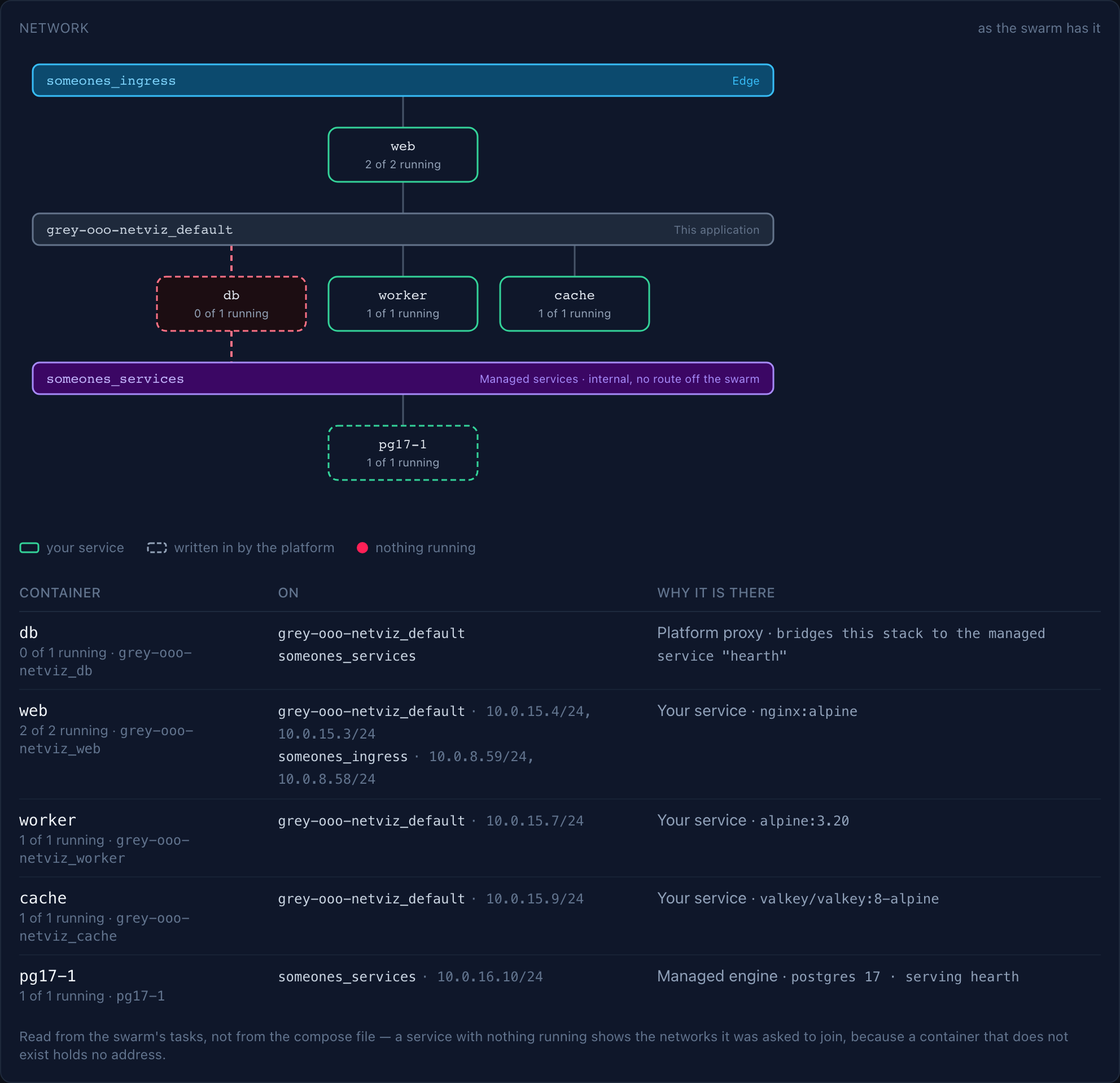
What the application is plugged into, read off the swarm rather than worked out from your compose file—so it shows what's actually attached, not what your compose file asked for.
Networks are drawn as bars and containers as boxes on them, ordered the way a request travels:
| Bar | What being on it means |
|---|---|
Edge (someones_ingress) |
Reachable from the internet through the edge. Only services that speak HTTP join it |
This application (<stack>_default) |
Your revision's own overlay. Services resolve each other by their compose name, and nothing outside the stack can reach them |
Managed services (someones_services) |
Internal—no gateway, no route off the swarm. Only the platform's own proxies and engines attach |
A box straddling two bars is what bridges them. A public service sits between the
edge and your overlay; the db proxy a managed-service binding adds sits between
your overlay and the engine's, which is the only way into a managed database—your
own containers are never on that network.
A dashed outline means the platform wrote that container into your stack rather than your compose file doing it: the binding proxy, and the engine behind it. A red one means nothing is running.
The table underneath carries the two things a picture can't: the swarm's own
name for each service, which is what docker service ps wants, and the overlay
address it answers on.
The panel loads when you scroll to it, because it asks the swarm live each time. A service with nothing running shows the networks it's meant to join—a container that doesn't exist holds no address.
Deployment history
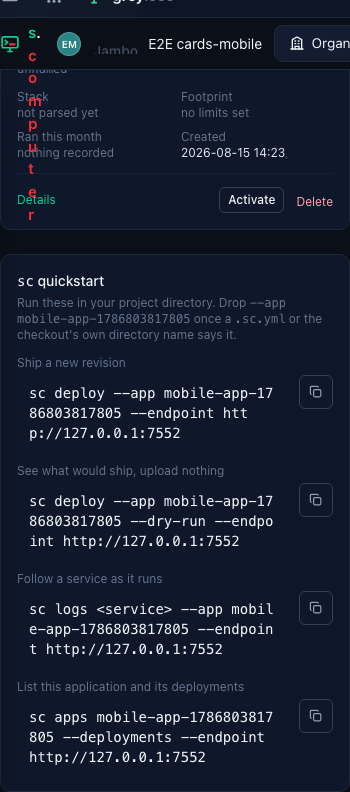
Every revision is a card. Cards are the unit of comparison: the same four figures on each, so you can see at a glance which revision doubled its replicas or which one has been quietly running all month.
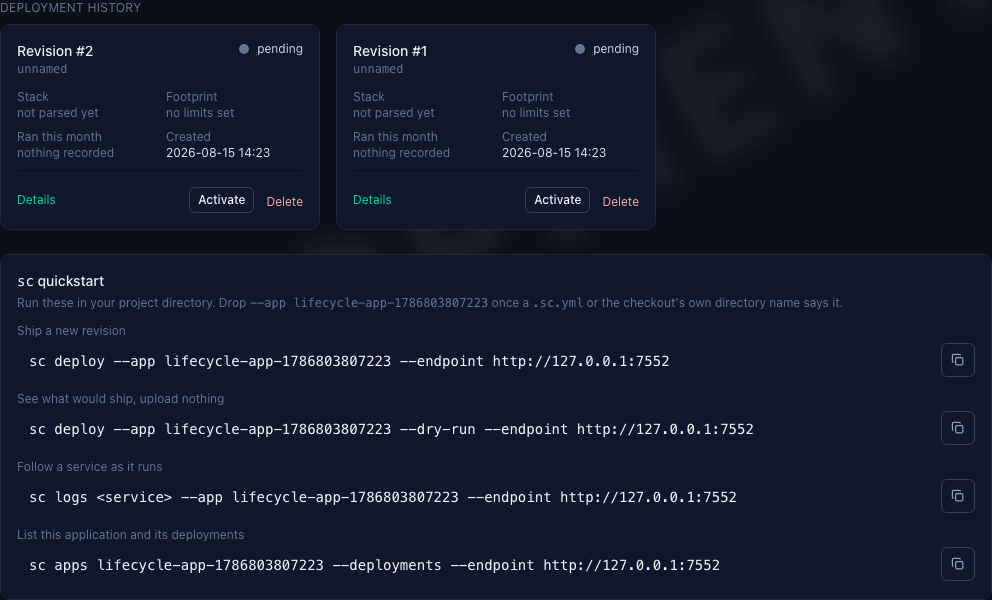
| On the card | Means |
|---|---|
| Stack | services × replicas in this revision. "Not parsed yet" means the build worker hasn't seen it. |
| Footprint | CPU and memory limits declared in the compose. "No limits set" is common and fine—the swarm then decides. |
| Ran this month | container-hours attributed to this revision. See what "attributed" means. |
| Created | when the revision was recorded, not when it went live. |
A failed revision shows why on the card rather than making you open the build log to find out.
Details opens the revision's own dashboard. Where the revision is the live one and running, each service also links to its live log. Owners and admins get Activate / Stop and Delete here; rolling back is the same gesture as rolling forward—pick the revision you want and activate it.
Which deploy becomes current
Each deployment name runs on its own stack, so a deploy can run beside the current revision and not replace it. A pull request preview does that. A revision that reaches running becomes the application's current revision only in these cases:
| The deploy | Becomes current |
|---|---|
| The application has no current revision yet | Yes |
| It has the same deployment name as the current revision | Yes. It replaced that stack |
| It has no deployment name | Yes |
Its deployment name is production |
Yes |
Any other name, such as staging or a preview |
No |
In the last case the revision runs on its own stack, and the card offers Make current. Press it to make that deployment the current one. After that, each deploy under the same name stays current, because the names match.
The list updates itself: a build starting, finishing or failing moves a card without you reloading. See live updates.
On a narrow screen the cards stack rather than scrolling sideways:
A revision's dashboard
The application page answers "which revision is live?". A revision's own page answers "what's this revision?"—the things that used to require reading the raw compose or a build log.
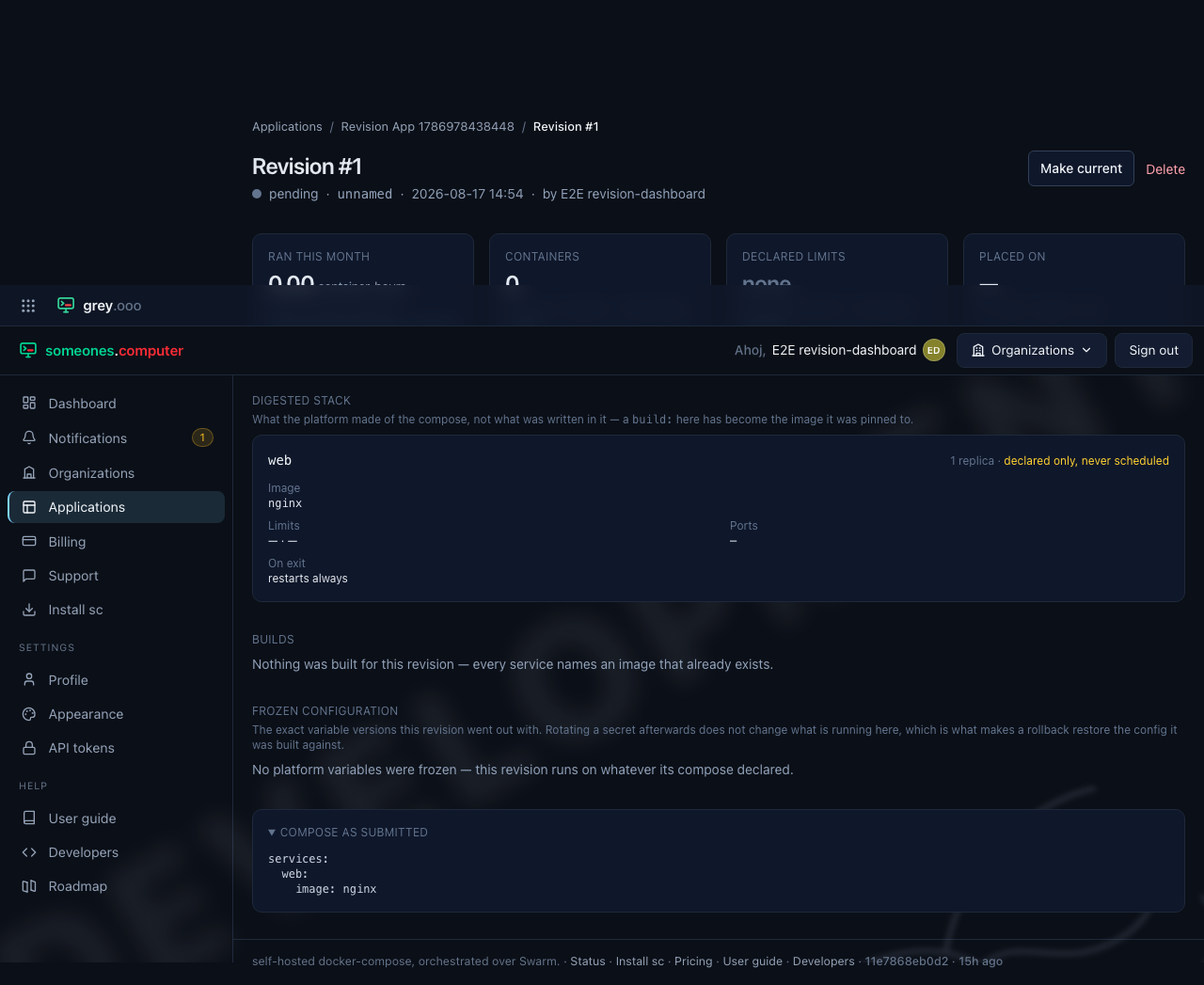
Header—the sequence number, its name (sc defaults this to your branch,
so the normal shape is a revision per branch), its state, when it was recorded
and by whom. A revision that failed carries the reason in full underneath, not
truncated:
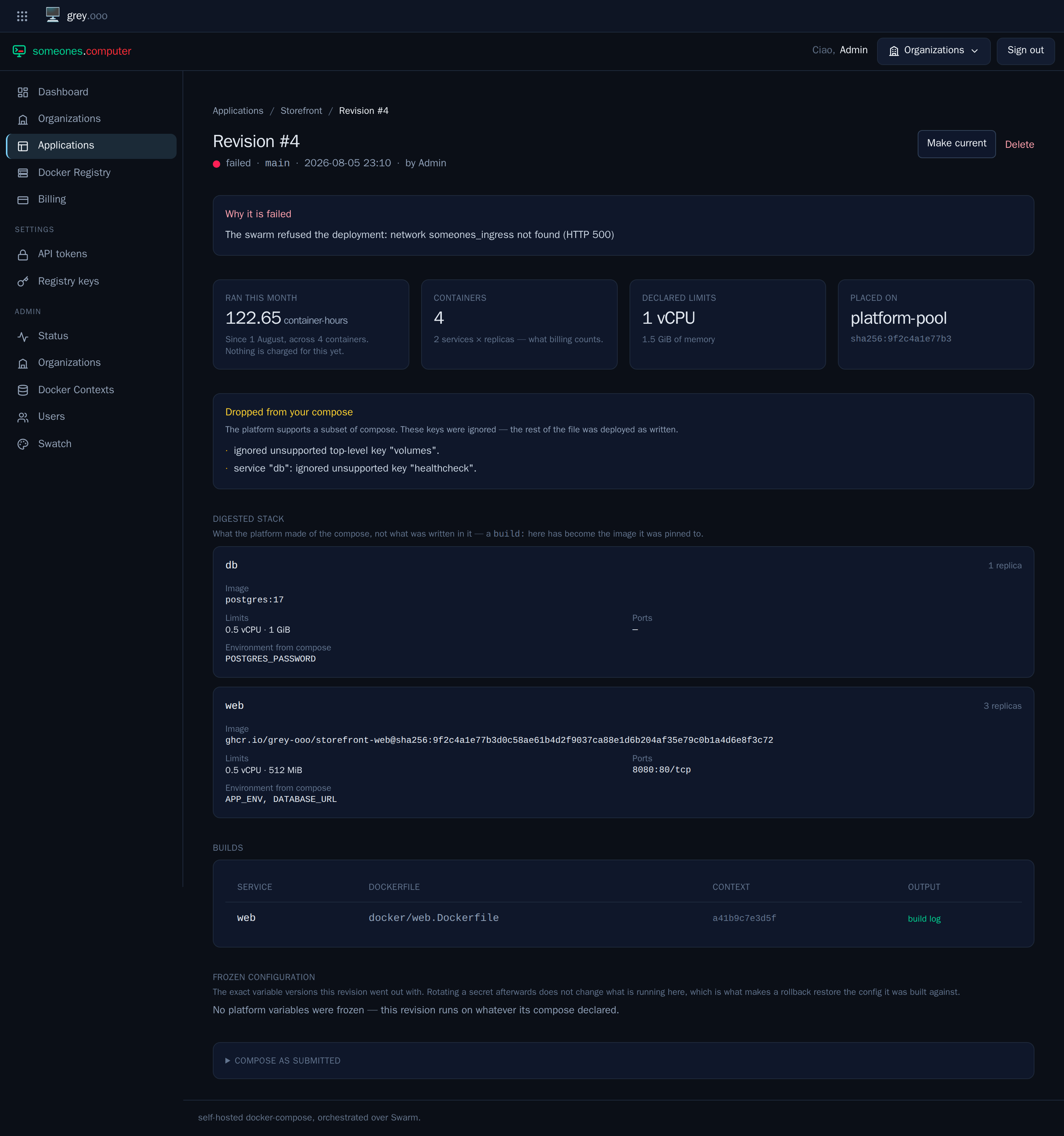
Four figures—what it ran this month, its container count, its declared limits, and which Docker context it was placed on together with the digest of its spec.
Dropped from your compose—the platform supports a subset of compose, and
anything outside that subset is stripped with a warning rather than rejected.
This panel is those warnings. If you are wondering why a volumes: block seems
to have done nothing, this is where it says so. It's absent when nothing
dropped.
Digested stack—what the platform made of your compose, which isn't always
what you wrote. A service declared with build: shows the image it was pinned
to; limits appear in the units you wrote rather than the nanoseconds and bytes
they're stored as. This page lists environment variables from your compose
by name only. A compose file routinely has a password typed into it, and
no page here will show you a value back.
Each service also says what happens on exit. restart: no makes a service a
one-shot—a migration or a batch job, run once per replica and then finished,
rather than a container the platform keeps restarting for ever. That distinction is
the point: a job that has exited reads as done here instead of as a service that
is down.
Builds—one row per service that shipped a build context, with the Dockerfile it used, the hash of the uploaded context, and a link to what the builder printed. A failed build keeps its log too. That's when anyone actually wants it.
Frozen configuration — the exact variable versions this revision went out with. Rotating a secret afterwards does not change what is running here, which is what makes a rollback restore the config the revision was built against rather than the old image with the new config.
Compose as submitted—collapsed by default: exactly what you uploaded, byte for byte.
Like the list it came from, this page updates itself while you watch. Opening a revision that's mid-build and leaving it there is a reasonable way to follow a build to its end.
Deployment states
A revision moves through these on its way to running, or stops at one of the last three. Lifecycles draws the same set as a diagram, with every move between them and who makes it.
| State | Means |
|---|---|
pending |
Uploaded, waiting for a build worker to pick it up. |
building |
Turning your compose (and any build: context) into images. |
built |
Images exist, nothing is running them yet. sc deploy passes straight through on its way to deploying; a revision can also rest here indefinitely if nothing asked for it to go live. |
deploying |
Placing the built images onto a swarm. |
running |
Live. Where sc deploy normally ends up. |
failed |
Something in the build or the deploy went wrong. The platform records the reason in full, and redeploying the same revision would fail the same way—push a new one instead. |
rolled_back |
A later revision replaced this one. Rolling forward to it again is the same gesture as any other deploy—Activate it from the deployment history. |
quarantined |
An image scan refused it. See below—this one isn't like the others. |
quarantined isn't a build or compose problem, and redeploying won't fix
it. The platform scans every image it builds, pulls, or runs. It refuses to
run one that turns up something—malware, or a live credential baked into a
layer—rather than running it anyway. For a build, a pull, or anything else caught
before it ever went live, that costs you the deploy, not the site. The one
exception: a signature update can flag an image that's already running,
and there the platform takes that stack down too rather than leave a flagged
image serving traffic until someone notices—so quarantine can mean losing
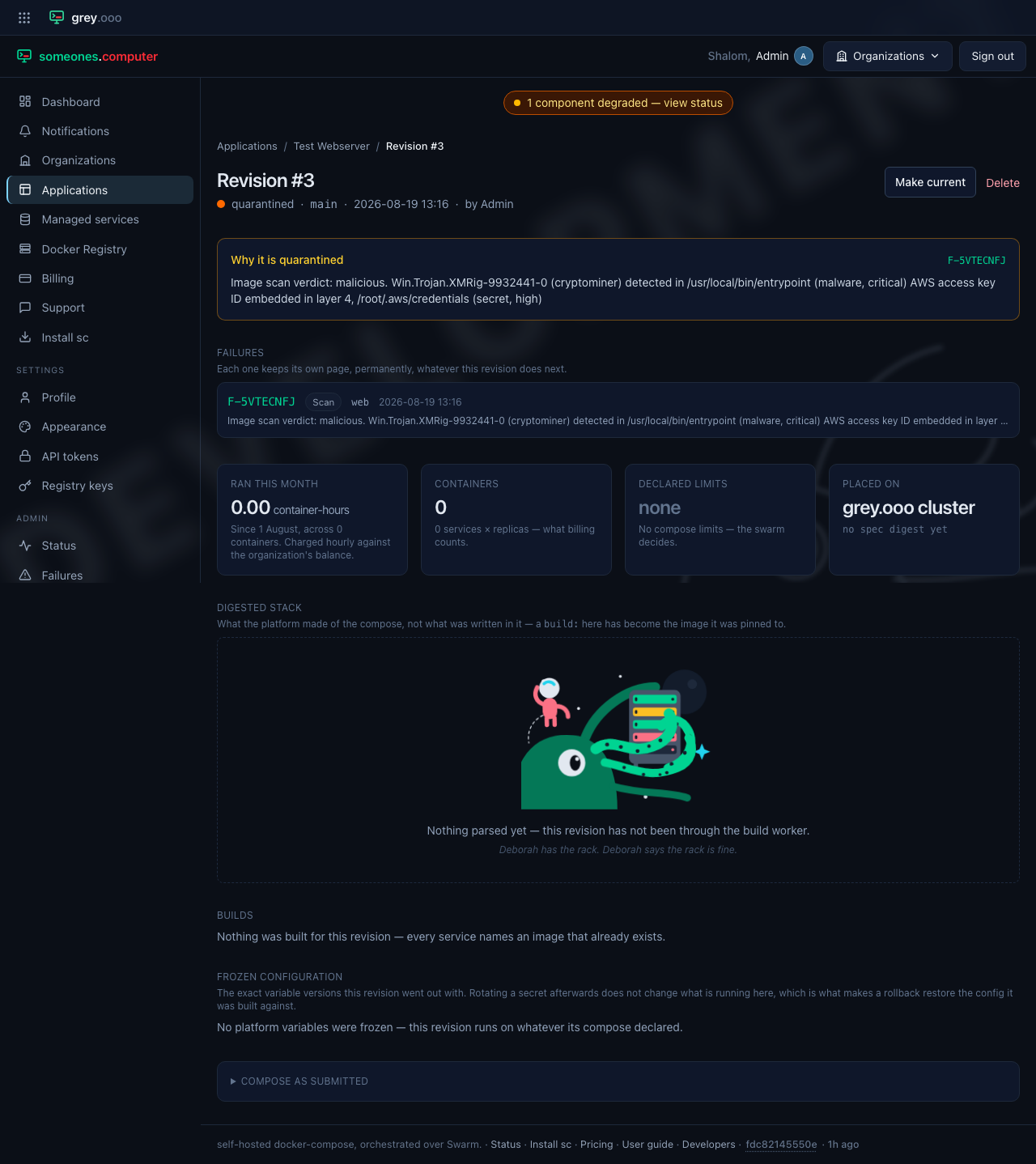
the site as well as the deploy. The revision's own page shows the full
reason, including what the scan found:
Only an operator can act on a quarantine: clearing it if it turns out to be a
false positive, or upholding it. Upholding moves the revision to failed and
carries the same reason forward. If you think a quarantine is wrong,
ask us.
Stopping a revision doesn't delete it. The platform keeps its images, and
it goes back to built, ready for you to activate again—including when the
platform took the stack down rather than you. See
Lifecycles for the three
things that do that, and how much warning each one gives.
What "ran this month" really counts
Container-hours are derived by pairing each container's observed start with the stop that follows it, per container—three replicas running the same half hour are ninety container-minutes, not thirty.
Two honest limitations, both stated on the page rather than rounded away:
- A start with no stop means either the container is still running (billable to now, and the platform checks whether the swarm still reports it) or its stop was never observed. The second case is counted separately and the figure is labelled a floor rather than a total, because inventing an end time would be worse than admitting a gap.
- Attribution begins where the ledger does. Usage is attributed to the revision that was current when the container started, so an interval belongs to whichever revision actually ran it even if a newer one took over before it stopped. Usage recorded before the platform tracked this reads as "nothing recorded" on a revision card, though it still counts towards the application's and the organization's totals—see billing.