Profile
Your profile is how you appear to everyone else on the platform—the name in the header, and the name on every list that mentions you. Open Profile & Settings in the sidebar—the Profile section is the first one on the page.
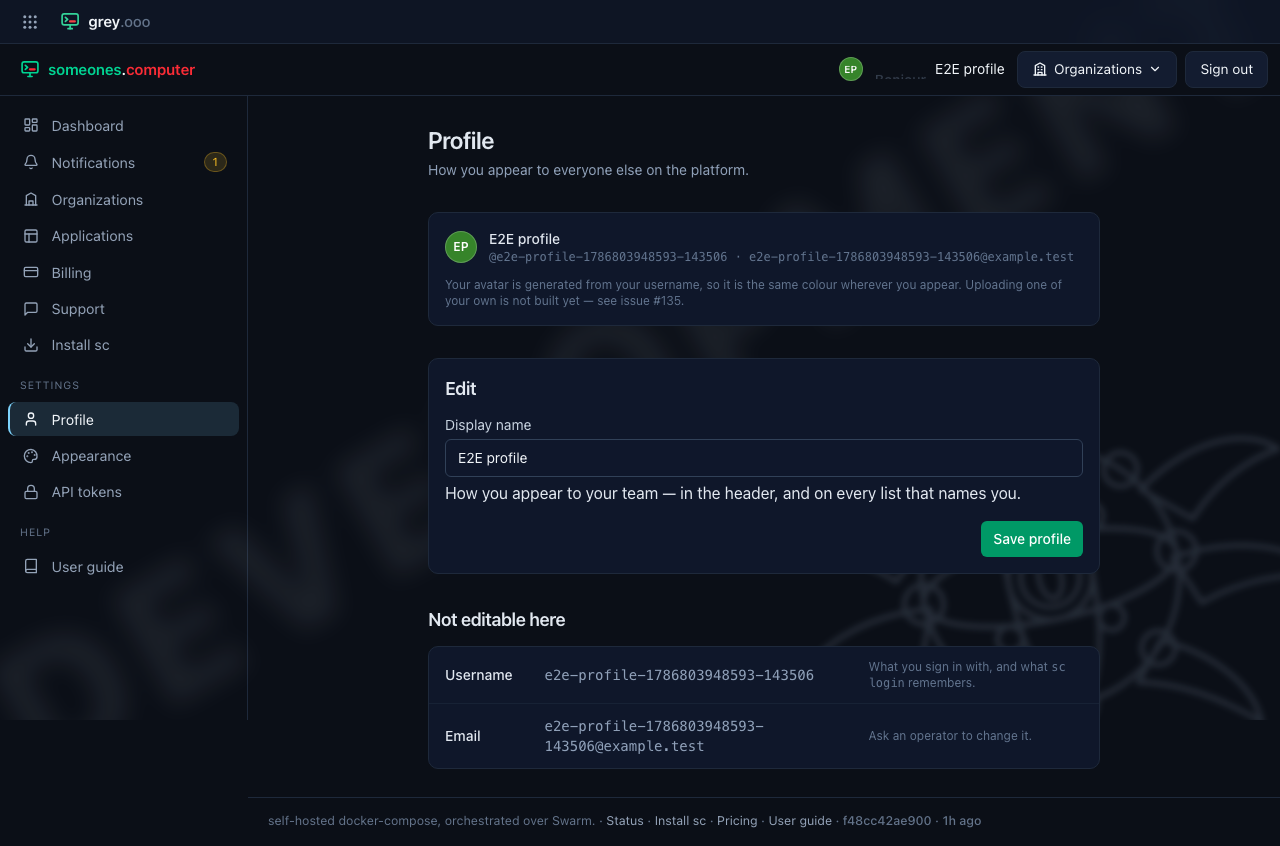
Changing your display name
Type a new one and click Save profile. It takes effect immediately: the header shows it on the very next page, and so does anything that names you (an organization's domain list, a registry credential's owner, the admin user list).
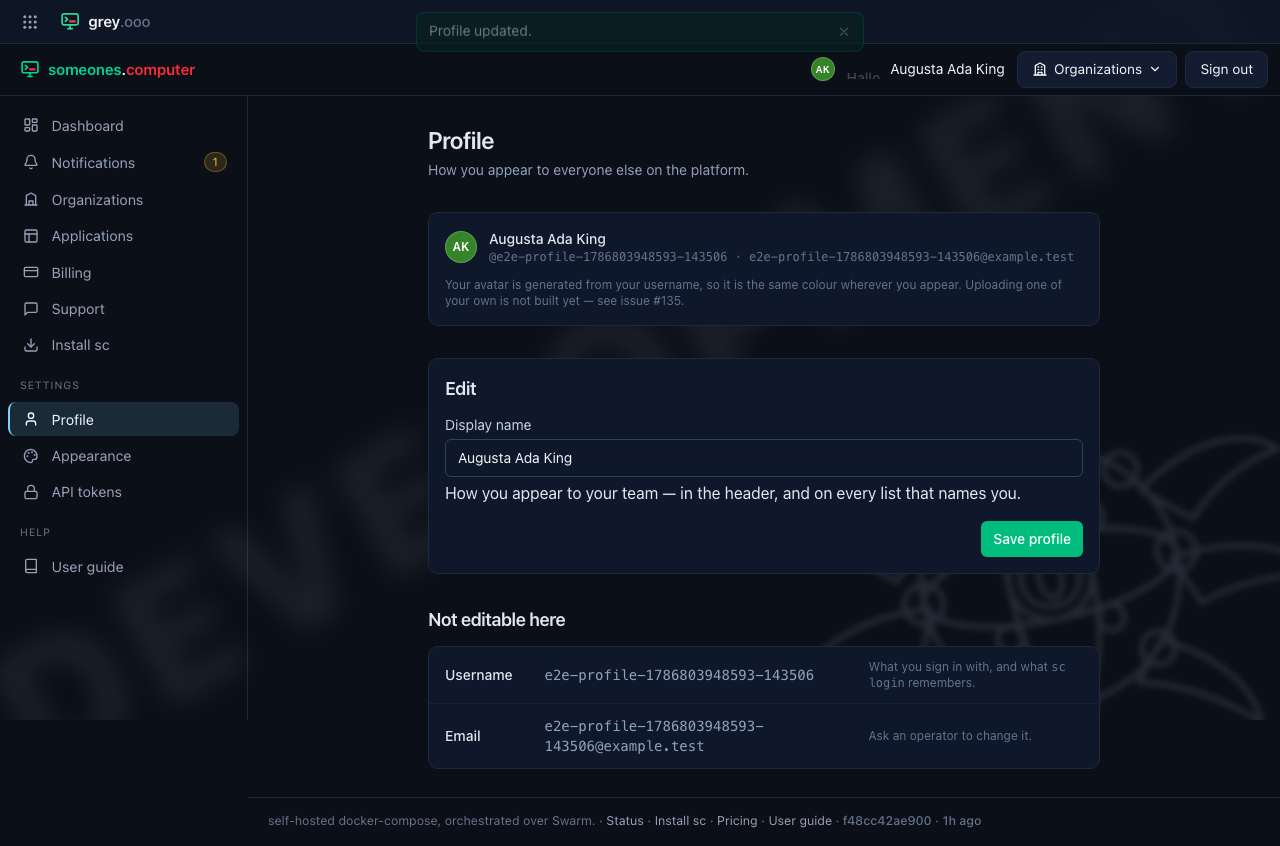
| Field | Editable | Why |
|---|---|---|
| Display name | Yes | The only thing here that's purely cosmetic |
| Username | No | It's what you sign in with, and what sc login remembers |
| No | Ask a platform operator |
Your avatar
Everyone has one, and nobody sets one here. There are two sources, in this order:
| Who gets it | Where it comes from | |
|---|---|---|
| Your directory photo | Accounts that sign in through LDAP, with a photo in their entry | Read from the directory on every sign-in and stored with your account |
| A generated one | Everyone else | Initials on a colour derived from your username |
The generated one means the same person is the same colour on every page, with
nothing uploaded or fetched from a third party. Renaming yourself changes the
letters but never the colour, because the colour comes from the username rather
than the display name. If you have no display name at all (an OAuth provider that
didn't share one), the initials come from your handle instead: ada.lovelace
reads AL.
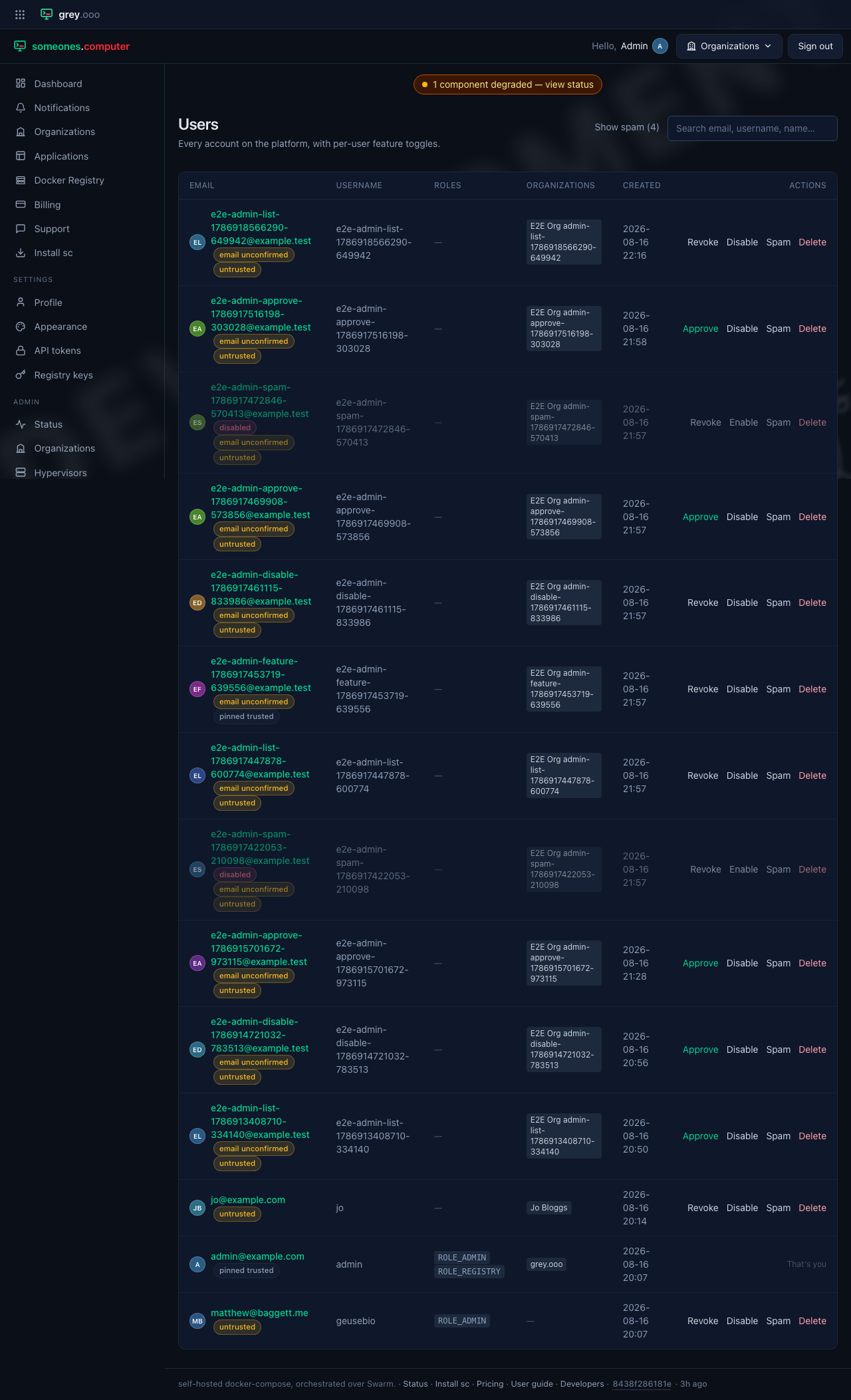
You change your directory photo in
LLDAP, not here—the directory is authoritative, and your next sign-in picks the change up. Removing it there removes it here too, and you go back to the generated avatar. Only JPEG and PNG are used, up to 256KB; anything else in the entry is ignored.Uploading an avatar of your own, without a directory, isn't built. See issue #135 for the options being weighed.
Language
The control panel comes in English (UK) and English (American). They differ in spelling and in
how dates and numbers appear. The sc CLI and the Model Context Protocol (MCP) tools reply in your language too.
There are two ways to choose:
| Where | Who can use it | What it saves |
|---|---|---|
| The language switcher in the top bar (the globe icon) | Anyone, signed in or not | A cookie in this browser. When you sign in, it also saves the choice to your account |
| Language on this page, then Save language | Signed-in accounts | The choice on your account, so it follows you to the next browser |
The platform picks your language in this order:
- The language saved on your account.
- The cookie in your browser.
- The language your browser asks for.
- English (UK).
Until you choose, the Language section says "Currently" and names the language it found from your browser or a previous choice. The switcher returns you to the page you were on. The public marketing pages, the developer pages, and the emails stay in English on purpose.